Introduction
Managing contacts directly on your Apple Watch is essential for protecting your privacy and maintaining control over who can contact you. Whether your iPhone is unavailable or you prefer using the Apple Watch solely, you have options. This guide details how you can block someone using only your Apple Watch, affording you greater peace of mind and a smoother user experience.
Understanding Contact Management on Apple Watch
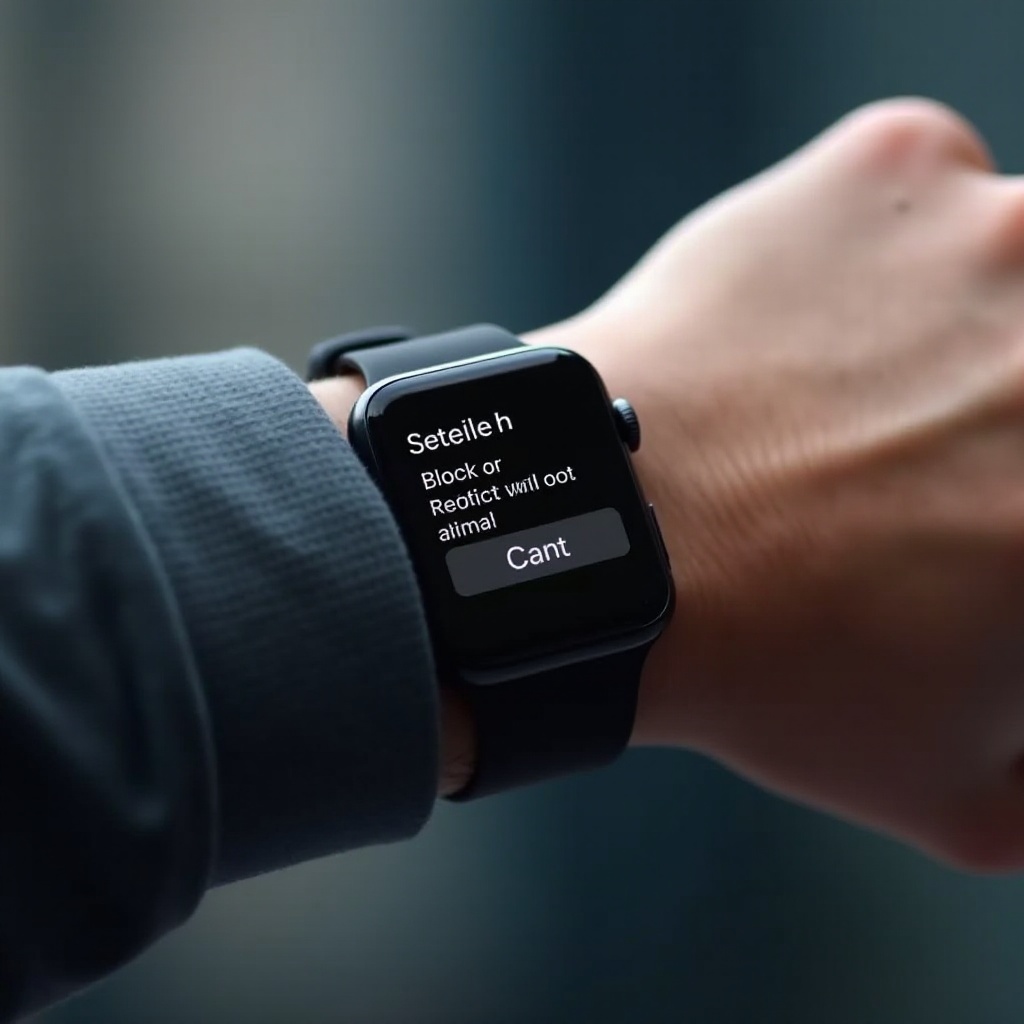
Apple Watch has a unique contact management interface. Unlike the iPhone’s comprehensive contact list, the Apple Watch offers a simplified view that emphasizes ease of use on a smaller screen.
- Differences Between Apple Watch and iPhone Contact Management:
On the Apple Watch, you can access your favorite contacts quickly via the Contacts app. Apple’s watchOS is optimized to present core features, making the blocking of contacts straightforward yet essential for anyone handling communications through the watch.
To effectively block contacts, grasping the ins and outs of your Apple Watch contact settings is crucial.
Step-by-Step Guide to Blocking Someone on Apple Watch
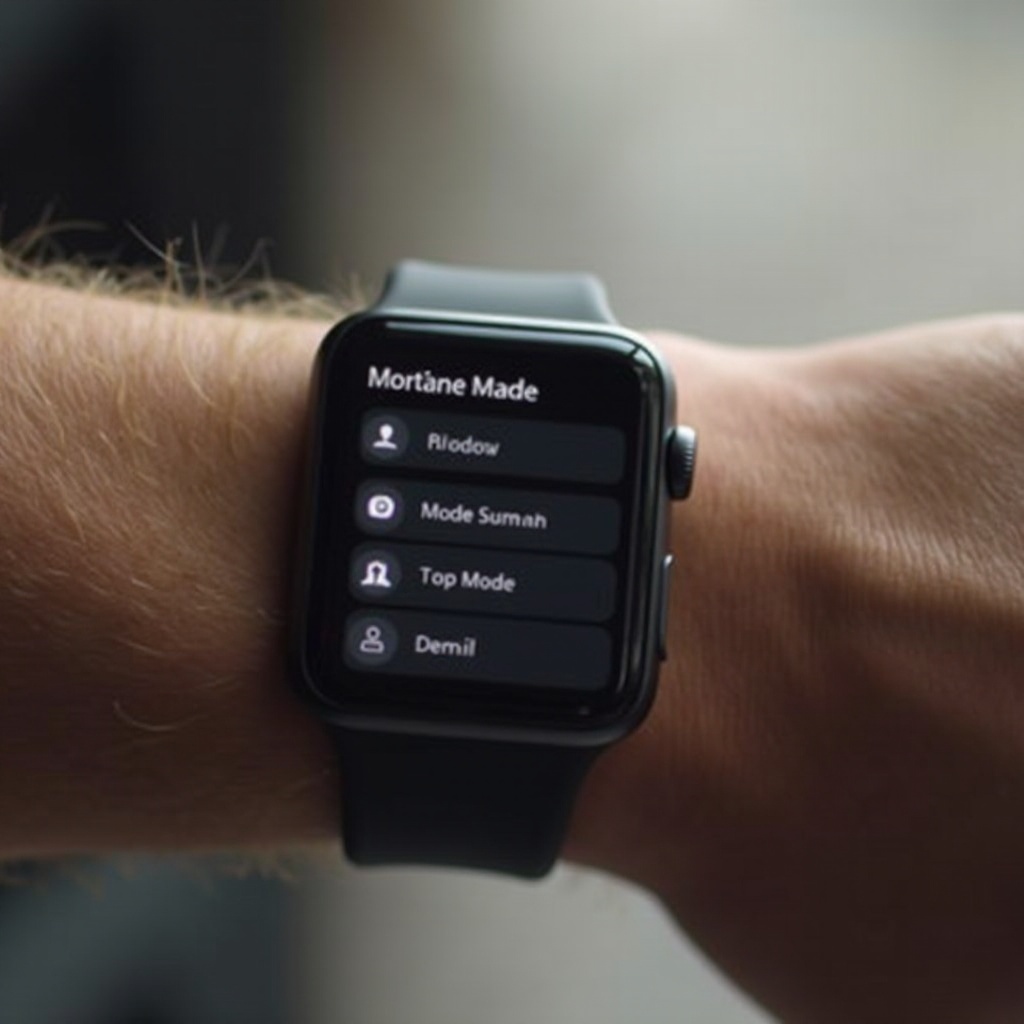
Blocking someone on your Apple Watch can be done through simple steps. Follow this guide to ensure uninterrupted interactions with those you wish to communicate with exclusively.
-
Preparing Your Apple Watch for Contact Management:
Ensure your Apple Watch is updated to the latest watchOS version. Verify this by navigating to the Settings app, scrolling to General, and selecting Software Update for any available updates. -
Blocking Contacts Directly from the Apple Watch Interface:
- Open the Contacts app on your Apple Watch.
- Tap the contact you wish to block.
- Scroll down and select ‘Block This Contact’.
-
Confirm your decision when prompted.
-
Troubleshooting Common Issues:
If you can’t see the option to block, ensure your Apple Watch is signed into your primary iCloud account. Restarting your Apple Watch can also refresh settings and show changes.
Once you’ve blocked the contact, it’s worth noting some limitations. These can affect how seamless the experience is across your devices.
Exploring the Limitations of Blocking Features on Apple Watch
Blocking contacts directly on your Apple Watch is practical, but there are some restrictions. Awareness of these can help set expectations and guide further actions when needed.
-
What Happens When You Block Someone?
A blocked contact can’t reach you via calls or messages. However, this setting might not sync across all apps, allowing blocked users to communicate through third-party platforms. -
Limitations Without iPhone Access:
Some settings might not apply universally if you’re not using an iPhone simultaneously. For universal changes, additional steps may be necessary once you reconnect to your iPhone.
Adapting effectively involves improving privacy settings beyond simply blocking contacts. Let’s explore other privacy adjustments.
Additional Privacy Settings for Apple Watch Users
Beyond blocking, it’s important to fine-tune your Apple Watch privacy settings for a more controlled experience.
-
Customizing Notification Settings:
In the Settings app, navigate to Notifications and modify what you receive and from whom. Tailoring this ensures you focus on what matters most while minimizing unnecessary disturbances. -
Using Do Not Disturb Mode:
Access Do Not Disturb by swiping up for the Control Center and tapping the moon icon. Set it to activate automatically during scheduled times or specific events for uninterrupted periods.
By leveraging these features, you enhance your Apple Watch’s ability to respect your preferred level of engagement.
Keeping Your Apple Watch Updated for Security
Security is an ongoing process. Maintaining current software versions is vital in protecting your data and ensuring all features function optimally.
-
The Importance of Regular Software Updates:
Keeping up with watchOS updates ensures you have the latest enhancements and security patches. Check for updates regularly via the Watch app on your iPhone: access My Watch, then General > Software Update. -
Synchronizing Your Device with the Latest Features:
Ensure all your devices are synced by keeping each one updated and logged into the same iCloud account. This ensures seamless, worry-free operation across different platforms.
These steps guarantee your Apple Watch remains a secure bastion of personal communication.
Conclusion
Controlling who can contact you is crucial in today’s connected environment. By mastering contact management and privacy settings directly on your Apple Watch, you remain in charge of your interactions. Utilize this guide to confidently manage who reaches you, ensuring a personalized and distraction-free experience.
Frequently Asked Questions
Can I block multiple contacts simultaneously on Apple Watch?
Currently, you need to block contacts one at a time directly from your Apple Watch.
Will blocking a contact on my Apple Watch affect my iPhone settings?
Blocking on your Apple Watch primarily affects the watch. Adjust iPhone settings separately for consistent cross-device settings.
How can I unblock someone if I change my mind?
To unblock, revisit the contact on your Apple Watch, scroll to the bottom, and tap ‘Unblock This Contact’. This reverses the block.