Introduction
iPhones provide a seamless way to keep up with time changes, thanks to their automatic update feature. This function ensures you stay in sync with local time changes, notably during Daylight Saving Time (DST) transitions. Many users are still curious if manual adjustments are necessary or if the device handles it on its own. Through this article, we will explore how iPhones manage these time changes, identify potential glitches, and offer solutions to keep your device’s clock precise.
Understanding iPhone’s Automatic Time Setting
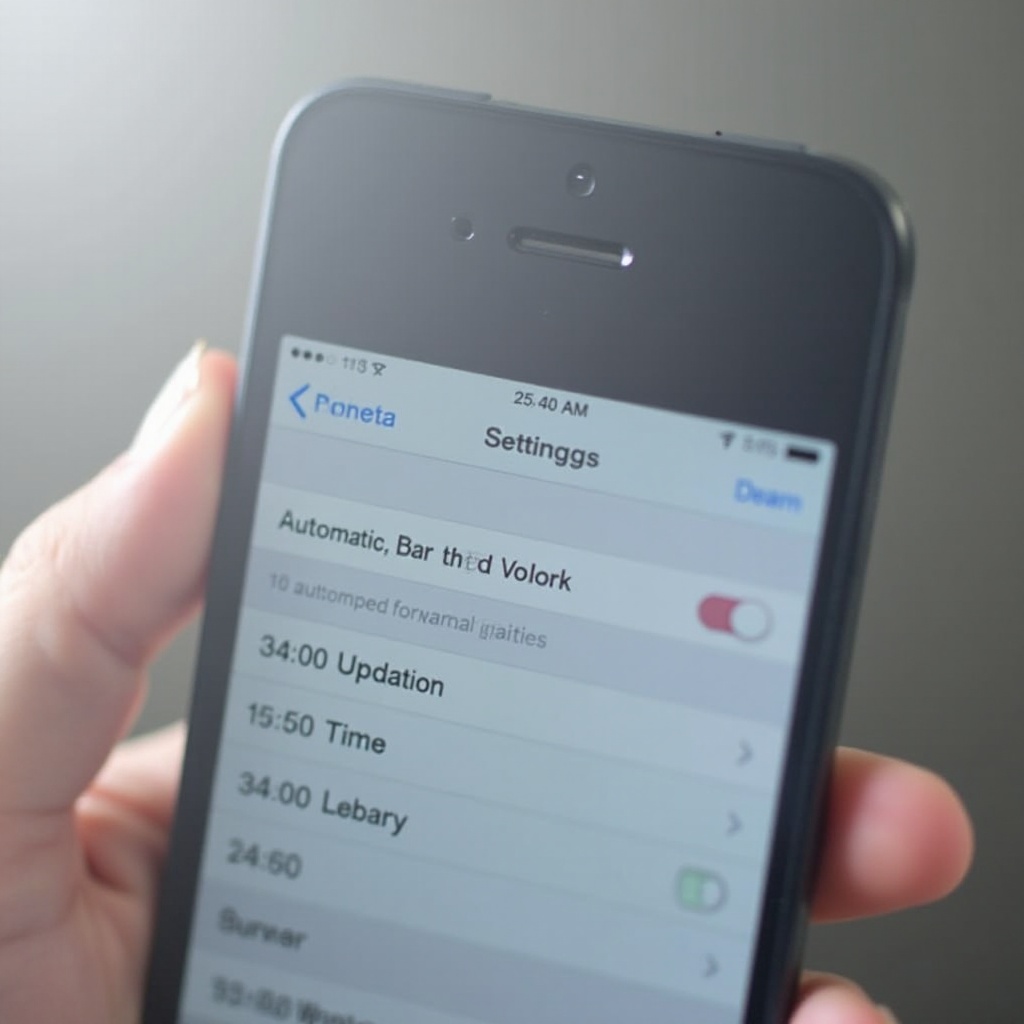
The ‘Set Automatically’ feature on iPhones is designed to take the hassle out of adjusting clocks by detecting local changes and altering the time accordingly. By utilizing your location and network settings, it ensures that the time displayed is accurate. This feature continuously checks for updates from Apple’s time servers, meaning your device will automatically adjust during Daylight Saving Time shifts without requiring user input.
With the ability to detect regional time shifts, iPhones eliminate the guesswork and potential confusion that can arise during DST changes. Your device consistently provides up-to-date time, allowing you to focus on what truly matters without worrying about manual clock adjustments.
Daylight Saving Time and Your iPhone
Daylight Saving Time was instituted to capitalize on extended daylight hours during summer, necessitating clocks to move forward in spring and back in autumn. iPhones are equipped to recognize these changes and modify the time settings automatically. Apple’s integration of updated time zone databases in its iOS updates keeps your device prepared for these transitions globally.
Therefore, keeping your iPhone’s software updated is essential not only for optimal performance but also for ensuring accurate time settings. These updates facilitate seamless adjustments during DST periods, proving the importance of regular system updates.
Common Issues with Automatic Time Updates
Despite the advanced technology in Apple devices, some users encounter scenarios where their iPhones do not automatically update the time as expected. This could be due to outdated software, incorrect time zone settings, or network issues that disrupt the ‘Set Automatically’ feature.
To address these issues, updating your iOS is critical. Updates not only enhance device performance but also ensure correct interpretation of time zone changes. This contributes to a smooth transition during Daylight Saving Time or any regional time adjustment, reinforcing the need for prompt software updates.
How to Verify and Adjust Time Settings
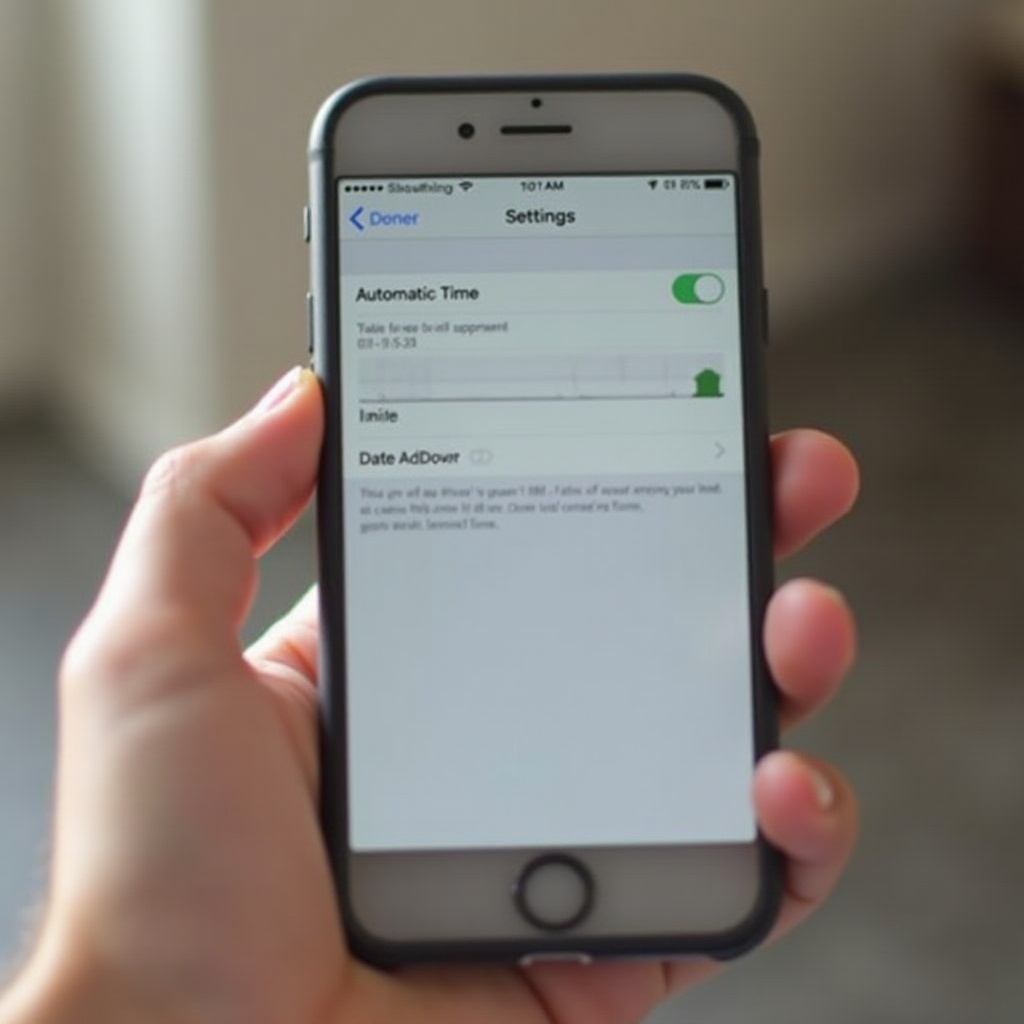
To ensure your iPhone adjusts the clock accurately, it is essential to verify the time settings. You can do so by following these easy steps:
- Open the ‘Settings’ app on your iPhone.
- Scroll to ‘General’.
- Tap ‘Date & Time’.
- Make sure ‘Set Automatically’ is enabled.
This setting ensures your device uses network time for necessary adjustments. For frequent travelers, enabling ‘Location Services’ helps improve accuracy by letting your iPhone ascertain its position and corresponding time zone precisely.
Troubleshooting Time Update Problems
Even with all necessary settings enabled, your iPhone might occasionally display an incorrect time. Here are some troubleshooting steps to resolve such issues:
- Activate Location Services: Check under ‘Settings’ > ‘Privacy’ > ‘Location Services’ to ensure they are enabled.
- Confirm System Services: Within Location Services, go to ‘System Services’ and make sure ‘Setting Time Zone’ is activated.
- Restart Your Device: A simple reset can refresh your phone’s memory, restoring proper functionality.
- Update Your iOS: Regularly updating your iOS ensures that your device has the latest time zone databases and improvements, aiding in precise time adjustments.
If none of these steps resolve the issue, contact Apple Support for further assistance in diagnosing and fixing persistent problems.
Conclusion
iPhones are built to enhance user experience, including handling automatic time adjustments efficiently. By making use of ‘Set Automatically’ and keeping your iOS updated, you can ensure seamless time transitions during changes like Daylight Saving Time without any manual intervention. Following the guidance and troubleshooting tips discussed will help you maintain accurate time settings, enhancing your device’s reliability.
Frequently Asked Questions
How can I ensure my iPhone updates automatically for Daylight Saving Time?
Make sure the ‘Set Automatically’ function is on under Settings > General > Date & Time, and keep your iOS updated.
What should I do if my iPhone displays the wrong time after a time change?
Check that your iPhone’s Date & Time settings have ‘Set Automatically’ enabled. If needed, update iOS and verify that Location Services are enabled.
Is it necessary to update iOS for accurate time settings?
Yes, updating iOS ensures that your device has the latest time zone databases and improvements, aiding accurate time adjustments.