Introduction
Capturing your screen with a screenshot can be incredibly handy. Whether you want to save game achievements, record important information, or share something interesting, knowing how to take a screenshot on your Alienware laptop is crucial. Alienware laptops, celebrated for their high-performance gaming capabilities, offer several efficient methods for capturing screenshots. Let’s walk through the steps to make sure you’re always ready to grab and save your onscreen moments.
Understanding Your Alienware Laptop’s Screenshot Functions
Alienware laptops are equipped with features ideal for quick and efficient screenshots. It’s important to understand these functions to fully utilize your laptop’s capabilities. Screenshots can capture error messages for tech support or aesthetic web designs for inspiration. Grasping how to operate these functions is the first step in becoming adept at capturing what’s important.
Overview of Alienware Features
Alienware laptops come with powerful hardware and software conducive to gaming and multitasking. This includes robust systems for processing graphics, an asset when screenshotting fast-paced content. Familiarize yourself with these features to make the process intuitive and straightforward.
Importance of Screenshots for Users
Screenshots are vital for various users, from gamers showcasing their achievements to professionals documenting their workflow. They offer a quick way to save information without additional devices. Understanding how to execute this task smoothly can significantly enhance your user experience.
Method 1: Using Keyboard Shortcuts
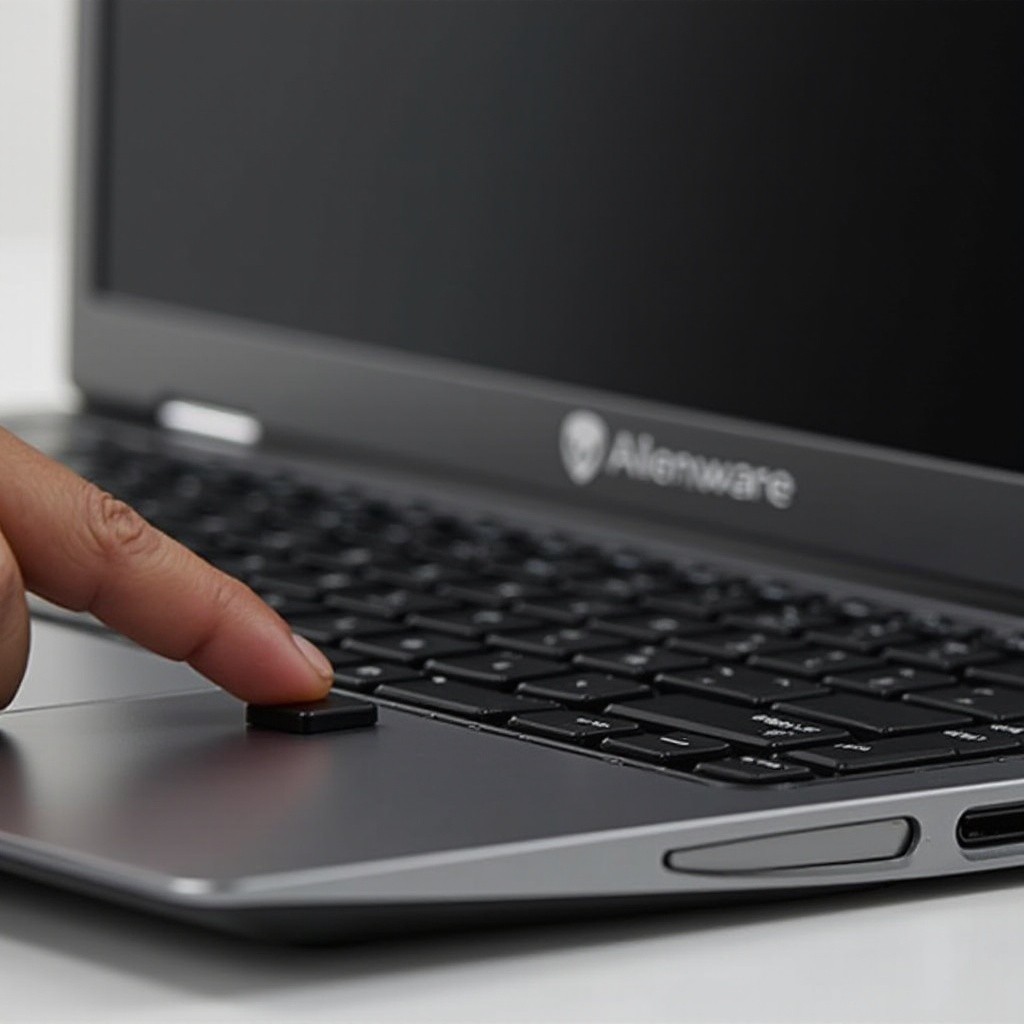
The fastest way to capture your screen on an Alienware laptop is through keyboard shortcuts. These shortcuts are simple commands that instantly save an image of your screen to the clipboard or a designated location.
Standard Shortcuts (PrtScn)
- Print Screen (PrtScn): Pressing the ‘PrtScn’ button saves your entire screen to the clipboard. You can then paste it into an image editor or document.
- Alt + PrtScn: Captures only the active window, ideal for specific applications.
- Ctrl + PrtScn: Some configurations may require this combination to activate the screenshot function.
Advanced Shortcuts (Windows + Shift + S)
- Windows + Shift + S: Opens the Snip & Sketch tool, allowing you to select specific parts of your screen. Simply drag the cursor to fit your desired capture area.
Method 2: Utilizing Snipping Tool and Snip & Sketch
For more control over your screenshots, use the Snipping Tool or Snip & Sketch. These built-in tools allow you to capture your screen in various modes, providing flexibility and precision.
Accessing These Tools on Your Laptop
- Snipping Tool: Search ‘Snipping Tool’ in the Start menu. This classic Windows utility lets you take freeform, rectangular, window, or full-screen snips.
- Snip & Sketch: Type ‘Snip & Sketch’ in the search bar. Open it with Windows + Shift + S, offering enhanced editing capabilities post-capture.
Exploring Different Modes (Rectangular, Freeform, etc.)
- Rectangular Snip: Drag your cursor around the area you want to capture.
- Freeform Snip: Draw around the area for more flexibility.
- Window Snip: Capture a specific window with one click.
- Full-screen Snip: Capture the entire screen immediately.
Each mode serves different user needs, whether for precision or simplicity.
Method 3: Advanced Techniques with Alienware Command Center
For gamers or those looking for more advanced techniques, the Alienware Command Center provides additional options. This tool, included with many Alienware laptops, extends functionality beyond standard Windows tools.
Introduction to Alienware Command Center
The Alienware Command Center is a software package designed to integrate with your device’s hardware, offering options primarily used for gaming. However, it includes utilities that can simplify and enhance your screenshot ability in a way unique to Alienware users.
Capturing Screenshots Using Gaming Features
Using the Command Center’s overlay for game streaming, users can capture in-game screenshots at crucial moments by customizing hotkeys and settings focused on gaming.
Troubleshooting Common Screenshot Issues
Sometimes, things might not go as smoothly. Understanding common problems and their solutions ensures uninterrupted work and play.
Non-responsive Shortcut Fixes
- Check PrtScn Settings: Ensure your Print Screen key is enabled in Windows settings if it’s linked to third-party software.
- Update Drivers: Outdated drivers might hinder your ability to take screenshots; ensure your system drivers are up-to-date.
Alternative Solutions and Tools
- Third-Party Tools: Consider software like Lightshot or ShareX, which offer advanced features and customization for screenshots.
Best Practices for High-Quality Screenshots
Taking a screenshot is useful, but ensuring its quality is vital. Here are some tips:
Tips on Resolution and Format
- Resolution: Choose settings that match your display to avoid pixelation.
- Format: Save in PNG for clear, high-quality images or JPEG for smaller file sizes.
When to Use Specific Tools
- Use Windows shortcuts for speed.
- Try Snip & Sketch for selection flexibility.
- Opt for third-party tools for advanced editing or cloud sharing options.
Conclusion
Taking a screenshot on your Alienware laptop is simple once you understand the variety of tools and methods available at your disposal. Whether you choose keyboard shortcuts, snipping tools, or the Alienware Command Center, versatile solutions are right at your fingertips, tailored to different scenarios and needs. Practice these techniques, and you’ll become proficient in saving and sharing whatever’s on your screen with ease.
Frequently Asked Questions
How can I find my saved screenshots on an Alienware laptop?
Typically, screenshots are saved in the ‘Screenshots’ folder located within the ‘Pictures’ directory. Otherwise, use a photo editing tool to paste from the clipboard.
What should I do if the screenshot feature doesn’t work?
Ensure your drivers and software are up-to-date. If issues persist, consider reinstalling the keyboard drivers or using third-party applications.
Are there any third-party apps recommended for better screenshots?
Yes, applications like Lightshot and ShareX offer additional features like annotation, cloud sharing, and advanced editing, enhancing your screenshot experience.