Introduction
Sleep mode is designed to conserve battery life and reduce unnecessary screen time on smartphones. It’s useful but can become a hindrance when you need continuous screen access, like during a video call or following a cooking recipe. Knowing how to manage this feature can enhance your phone’s functionality, making it more adaptable to your lifestyle needs.
Understanding Sleep Mode and Its Impacts
Before you disable sleep mode, it’s crucial to understand its purpose and effects.
What Is Sleep Mode?
Sleep mode automatically dims or turns off the phone’s display after a period of inactivity. This feature helps in conserving battery life and preventing screen burn-in.
Benefits and Drawbacks of Sleep Mode
While sleep mode extends battery life, ensuring your device is active only when necessary, it can interrupt prolonged activities requiring an active display, such as reading long documents or interactive sessions.
Common Scenarios for Disabling Sleep Mode
Users often need an active screen during situations like presentations, extended reading, or while running GPS applications. Recognizing such scenarios can guide when it’s appropriate to switch off sleep mode.
How to Take Sleep Mode Off on iPhones
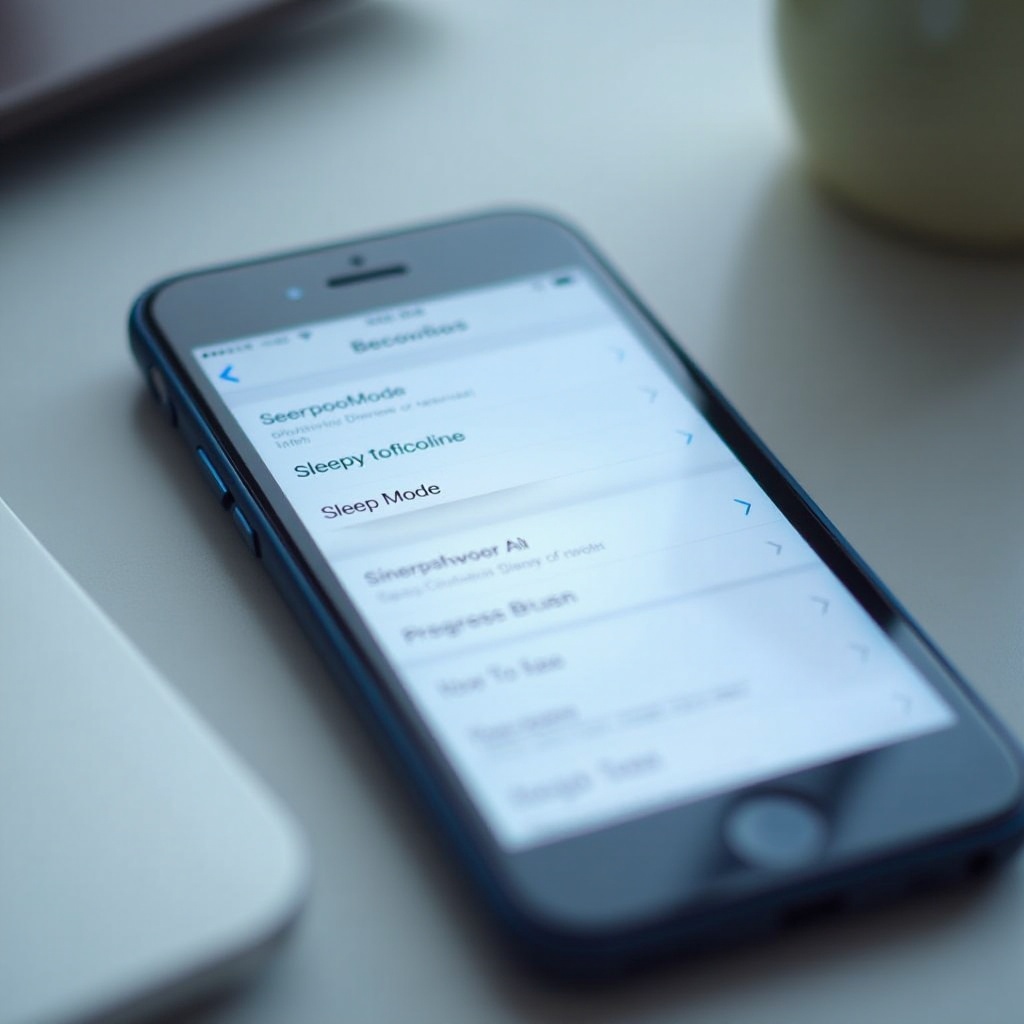
Disabling sleep mode on iPhones is straightforward but requires navigating the settings correctly.
Navigating to Display Settings
- Open the ‘Settings’ app on your iPhone.
- Scroll down and tap on ‘Display & Brightness’.
Adjusting Auto-Lock Settings
- Within ‘Display & Brightness’, find ‘Auto-Lock’.
- Tap ‘Auto-Lock’ and select ‘Never’ to disable automatic sleep mode, or choose a preferred time duration.
Troubleshooting Common iOS Sleep Mode Issues
Ensure your iPhone software is up-to-date by visiting ‘Settings’ > ‘General’ > ‘Software Update’. Frequently, updating your device or a simple restart can resolve persistent issues with sleep mode settings.
How to Take Sleep Mode Off on Android Devices
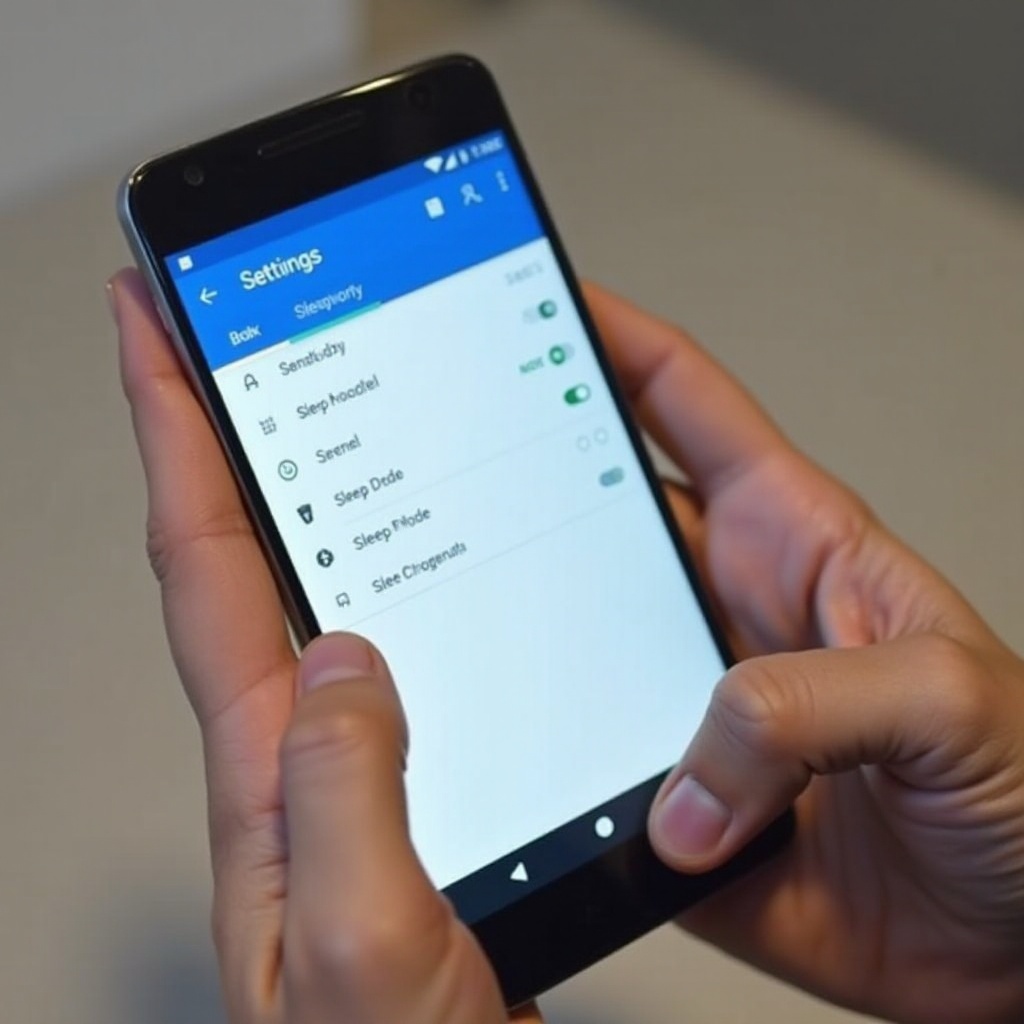
The process to disable sleep mode on Android varies by manufacturer but typically follows similar steps.
Accessing Display & Brightness Settings
- Open ‘Settings’ on your Android device.
- Select ‘Display’ or ‘Display & Brightness’ depending on your phone.
Adjusting Screen Timeout Options
- Look for ‘Screen timeout’ or ‘Sleep’ settings.
- Choose a longer time duration or select ‘Never’ to prevent the phone from entering sleep mode automatically.
Troubleshooting Common Android Sleep Mode Issues
Ensure all software updates are installed by checking ‘Settings’ > ‘About Phone’ > ‘System Updates’. Persistent issues may be resolved by restarting the device or checking for app conflicts.
Advanced Tips for Managing Sleep Settings
Aside from basic settings, users can explore advanced ways to control sleep mode.
Using Developer Options for Enhanced Control
For advanced control on Android, enable ‘Developer Options’ by tapping ‘Build Number’ multiple times in ‘About Phone’. This feature offers deeper settings adjustments, including overriding standard sleep mode behavior.
Third-Party Apps to Manage Sleep Mode
Applications like ‘Stay Alive!’ for Android and ‘Caffeine’ for iOS can provide more customizable control over when and how your phone’s screen remains active, catering to specific needs.
Creating a Custom Sleep Schedule
Make use of features like ‘Do Not Disturb’ or create custom schedules for sleep mode to be enabled or disabled based on your daily routine, thus ensuring that the phone remains active or goes to sleep when appropriate.
Conclusion
Mastering sleep mode settings can significantly improve your device’s utility, ensuring it meets your lifestyle demands without unnecessary interruptions. By understanding and applying these steps on both iPhone and Android devices, users can tailor their devices to function seamlessly while conserving energy where possible. Explore these options and find the right balance for your needs.
Frequently Asked Questions
Can sleep mode impact battery life?
Yes, sleep mode is designed to save battery by reducing screen usage when the phone is inactive.
How can I quickly toggle sleep mode?
Quick toggling may not be directly available, but using third-party apps or shortcuts in settings can help manage it efficiently.
What if my phone doesn’t have a sleep mode option?
Check for ‘screen timeout’ or ‘display’ settings as alternatives, and ensure your device’s software is up-to-date.