Introduction
Customizing your Android device’s notifications can greatly enhance your user experience by adding personal flair and functionality. Personalized notification sounds help you recognize which app needs your attention without having to constantly check your device. Identifying apps by sound helps manage priorities efficiently and adds a distinct personalised touch to your phone.
Even if you are not tech-savvy, changing these sounds is an easy process achievable through a few straightforward steps. This guide walks you through modifying notification sounds for various apps, troubleshooting common issues, and ensuring a seamless customization experience.
Understanding the Importance of Custom Notification Sounds
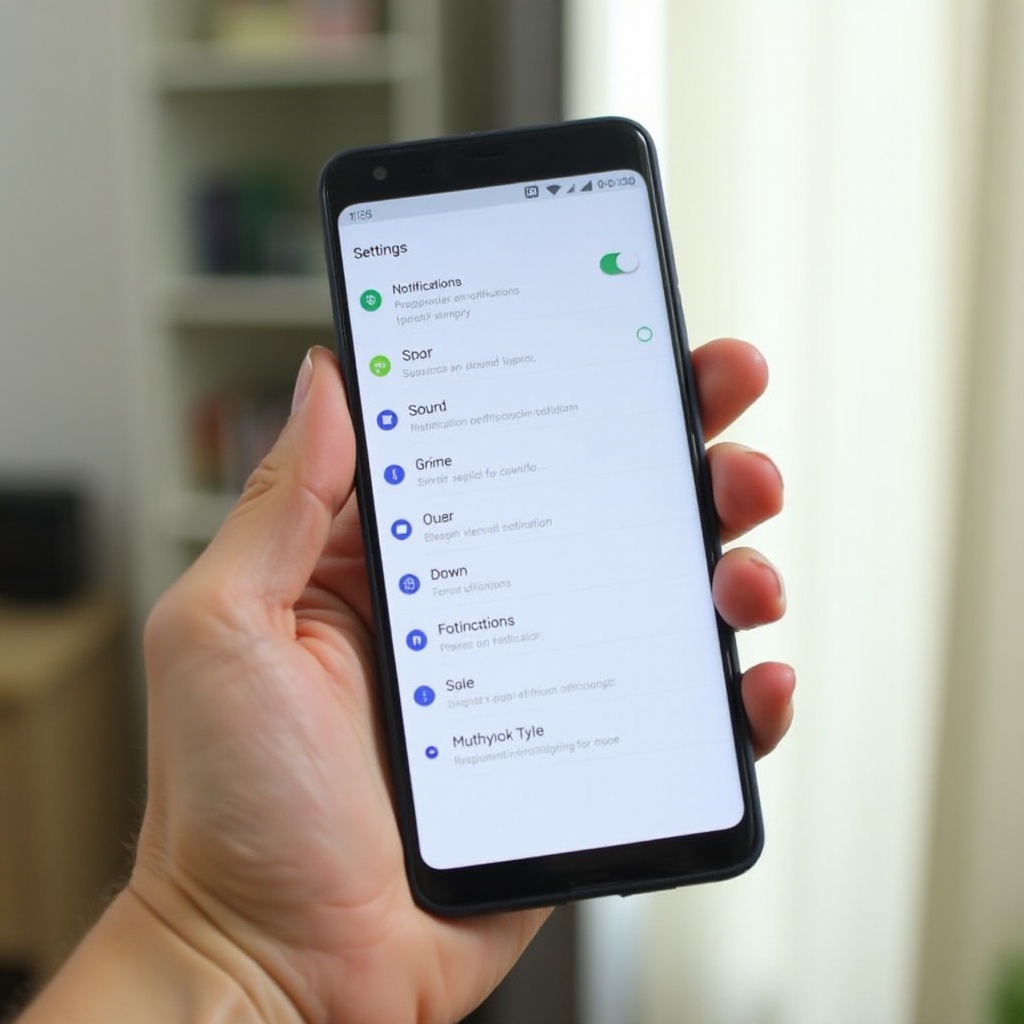
Personalizing your Android device extends beyond aesthetics to functionality. By designating different notification sounds to apps, you can effectively manage your time and attention. Recognizing a notification sound without glancing at your phone minimizes distractions, enabling you to maintain focus on critical tasks.
Different apps play varied roles and have divergent levels of importance. For example, a unique sound for your work email can allow you to distinguish between professional and personal communications swiftly. Recognizing app-specific alerts promptly lets you respond to urgent notifications efficiently.
Decisions on custom sounds involve more strategic choices than just personal preference; these adjustments contribute to a more seamless and intuitive user experience. Tailoring these settings assists in streamlining your digital life.
Preparing Your Android Device for Customization
Before beginning the customization journey, setting up your Android device is crucial. Start with a fully charged device running the latest version of Android to access advanced features and settings options related to notification sounds.
Ensure the apps you’re customizing are updated. Frequent updates by developers aim to enhance functionality, and having the latest versions ensures you can fully enjoy new customization features. Additionally, familiarize yourself with your device’s settings menu, as interfaces may slightly differ between Android models.
Once these preparations are done, you’re ready to personalize notification sounds smoothly and effectively.
Step-by-Step Guide to Changing Notification Sounds on Android
Changing notification sounds becomes simple when broken down into precise steps:
Accessing the Phone’s Sound Settings
- Open your phone’s Settings: Locate and tap the settings app on your Android device.
- Access Sound Settings: Go to ‘Sound’ or ‘Sound & vibration’ from the options available.
- Find Notification Sounds: Look for ‘Notification sounds’ or ‘Notification ringtone’ under the sound settings.
Customizing System-Level Notification Sounds
- Choose Default Sounds: From the list of notification ringtones, select a sound from the pre-loaded options available on your phone.
- Test Sounds: Listen to each sound to make your choice for system notifications.
App-Level Notification Sound Adjustments
- Find Apps in Settings: Return to the settings main menu and open ‘Apps’ or ‘Applications’.
- Select App to Customize: Tap on the app you wish to change the notification sound for.
- Change Notification Settings: Navigate to ‘App notifications’, then adjust the notification sound as preferred if supported by the app.
Detailed Instructions for Popular Apps
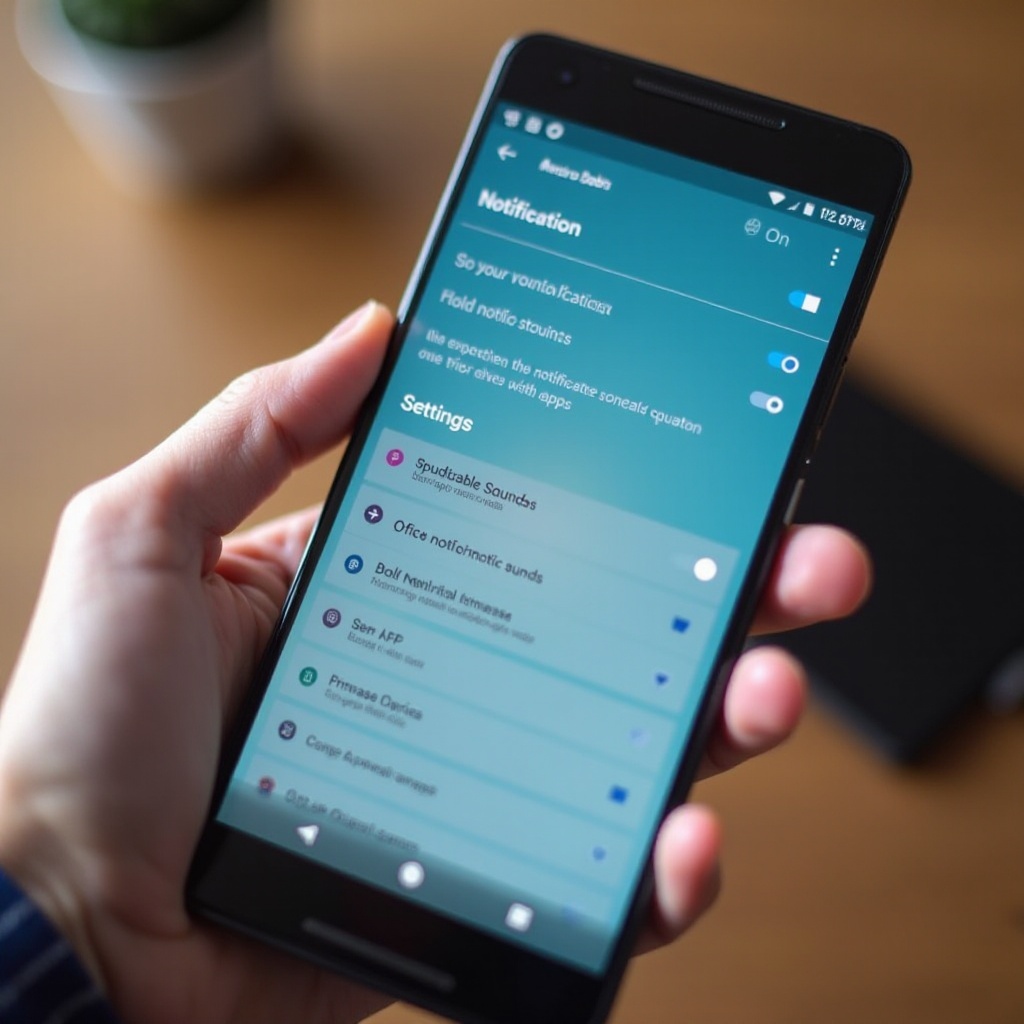
Customizing notification sounds for specific apps, particularly those you use frequently, enhances user experience. Here’s how to achieve this for popular apps:
Changing Notification Sounds for Messaging Apps
- WhatsApp:
- Open WhatsApp and tap ‘Settings’.
- Select ‘Notifications’.
-
Press ‘Notification tone’ and pick the desired sound.
-
Facebook Messenger:
- Launch Messenger, and tap your profile picture to access ‘Settings’.
- Navigate to ‘Notifications & Sounds’.
- Select a notification sound.
Customizing Email Notification Sounds
- Gmail:
- Open Gmail and head to ‘Settings’.
- Choose your account, then tap ‘Manage notifications’.
-
Select your desired sound under ‘Mail’.
-
Outlook:
- Open Outlook, and tap the profile icon.
- Access ‘Settings’, followed by ‘Notifications’.
- Set your notification sound preference.
Adjusting Sounds for Social Media Apps
- Instagram:
- Open Instagram, tap your profile icon, then hit the menu.
- Go to ‘Settings’, select ‘Notifications’.
-
Under ‘Push Notifications’, adjust sounds.
-
Twitter:
- Open Twitter, tap the profile icon, and select ‘Settings and privacy’.
- Under ‘Notifications’, choose ‘Push notifications’.
- Set your desired notification sound.
Troubleshooting Common Notification Sound Issues
Despite careful steps, issues may arise while customizing notification sounds, but they are typically simple to fix:
- Changes Not Applying: Confirm that you’ve granted the necessary permissions for the app to modify settings.
- No Sound Playing: Check the volume and make sure the phone isn’t on silent or do not disturb mode.
- Apps Not Showing Sound Options: Ensure the app is up-to-date; if not, consider reinstalling it.
Conclusion
Changing notification sounds on Android is not only straightforward but also enhances the user experience by helping you manage attention priorities efficiently. Whether it’s a work email alert or a social media update, custom sounds facilitate seamless interaction with your device. This guide provides the necessary knowledge to personalize your notification sounds, ensuring you remain informed without missing significant alerts.
Frequently Asked Questions
Why aren’t my notification sound changes applying?
Ensure the app has the necessary permissions for changes, and verify that you’re choosing supported sounds.
Can I use custom ringtones as notification sounds?
Yes, custom sounds can usually be added using a file manager or apps designed to manage ringtones and notifications.
How do I reset notification sounds to default?
Return to app or system notification settings, and select ‘Default’ or ‘System Default’ to revert.