Introduction
Setting a personalized voicemail greeting on your phone is vital for effective communication. Whether for personal or business purposes, your voicemail should convey the right message to callers when you are unavailable. It serves as your audible presence and reflects how you want to be perceived. Updating and personalizing this message on your phone can be straightforward once you get the hang of the steps involved.
Understanding Your Phone Type
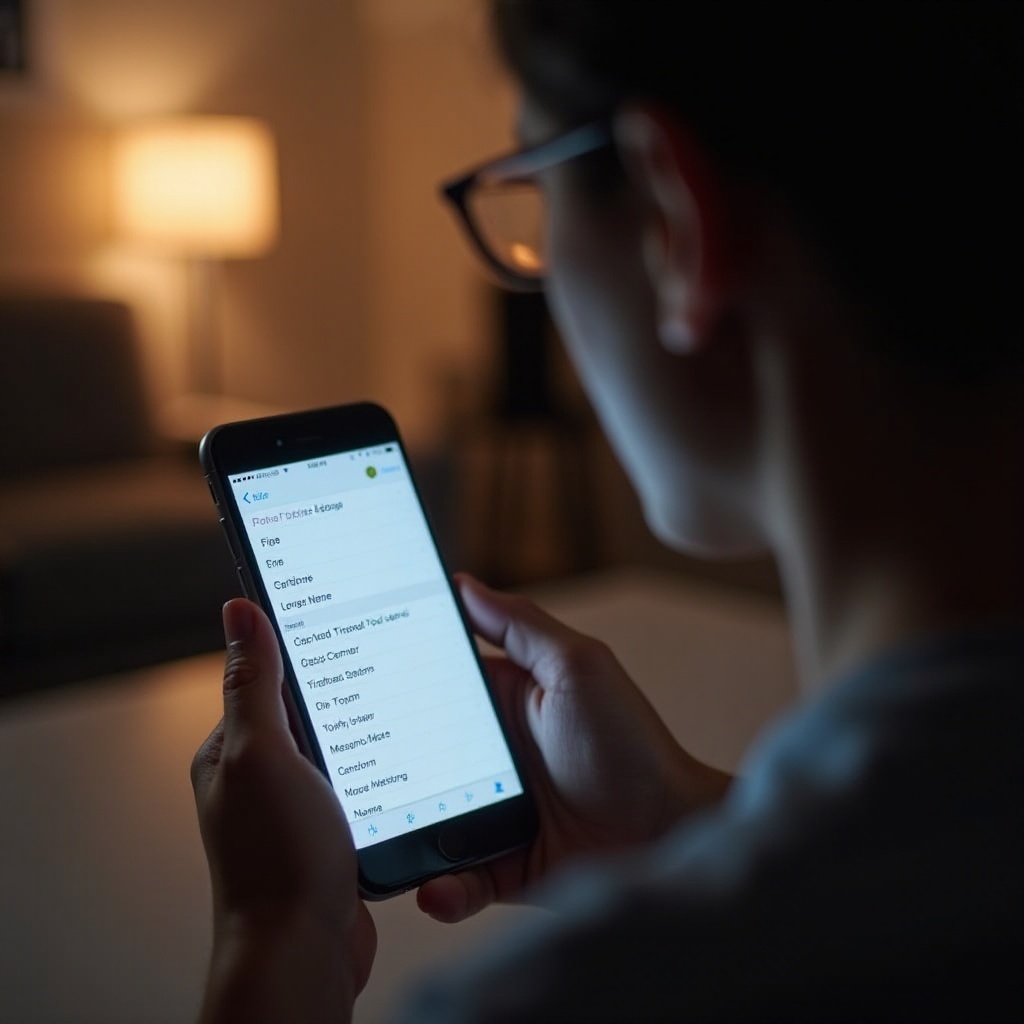
Before diving into the steps, it’s essential to identify your phone type. The process of changing your voicemail greeting varies depending on your device, with the most common categories being iOS (iPhone), Android, and other older mobile phones or landlines. Recognizing your device type helps ensure that you follow the accurate procedure for adjusting your message effectively.
For iOS users, modifying voicemails is a breeze. Android devices, with their multiple models and operating systems, require slightly different navigation. Additionally, those using older phones or landlines will encounter distinct steps. Let’s explore each category in depth.
Changing Your Voice Message on an iPhone
If you own an iPhone, you’re in luck, as Apple makes managing voicemails intuitively simple. Here’s how to update your voicemail:
- Open the Phone App: Launch the Phone app on your iPhone.
- Access Voicemail: Tap on the Voicemail tab located at the bottom.
- Select Greeting: In the upper left corner, tap on ‘Greeting’ to see your current message.
- Record Your New Message: Choose ‘Custom’ and then tap ‘Record’ to start creating your new message.
- Save Your Message: After recording, press ‘Stop’ to finish and then ‘Save’ if you’re satisfied.
Review the new message to ensure clarity and professionalism. A well-crafted voicemail can genuinely enhance the caller’s experience and your communication efficiency.
Changing Your Voice Message on an Android Phone
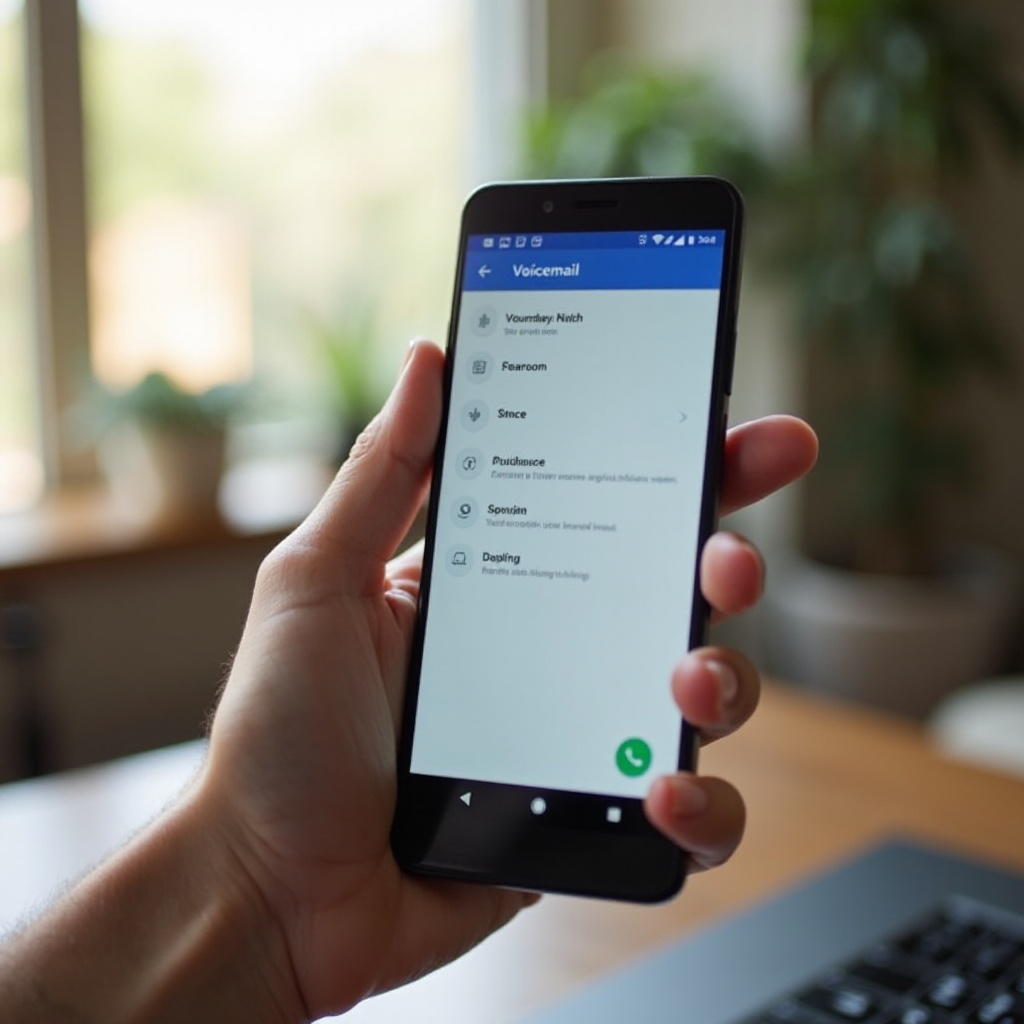
For Android users, the procedure might differ slightly based on your phone model and service provider, but generally, it follows these steps:
- Open the Phone App: Start by opening your device’s Phone app.
- Access Voicemail Settings: Tap the three-dot menu icon usually found in the upper corner.
- Select Voicemail: Go to ‘Settings’ and find ‘Voicemail.
- Record New Greeting: Look for ‘Greeting’ and follow the prompts to record your new message.
- Confirm Changes: Save the greeting after ensuring it meets your expectations.
Given Android’s broader range of options, settings can slightly vary. Always reference your specific device’s manual if you encounter challenges, ensuring your voicemail greeting is set correctly.
Updating Voicemail on Other Devices
For older mobile phones and landlines, voicemail updates might involve additional steps due to differing interfaces and the lack of modern touch systems:
-
Landline Phones: Typically, you’ll dial your voicemail number, enter your password, and follow the spoken prompts to record a new message.
-
Older Mobile Phones: Call your voicemail number, access settings through the service menu, and select the option to update the greeting. Follow the automated instructions as provided by your service provider.
Though these older systems may not have visual voicemail, they still offer a reliable way to record and update your greeting by following carrier-provided instructions.
Tips for Crafting an Effective Voice Message
Now that you know how to change your voicemail message, here are some tips to ensure your greeting is both informative and professional:
- Be Concise: Keep it to 30 seconds or less to maintain the caller’s attention.
- Clarity: Speak clearly and at a pace that ensures every word is understandable.
- Professional Yet Warm: Use a friendly tone while maintaining professionalism, especially for business.
- Include Key Details: Mention your name, the callback purpose, and any additional instructions.
An effective voice message considers the caller’s likely needs when they can’t reach you directly.
Troubleshooting Common Issues
While the process of changing your voicemail should typically be straightforward, you might face a few hiccups:
- Unable to Make Changes: Verify network connections or restart your device for a fresh start.
- Playback Errors: Ensure your volume is up and there are no connected Bluetooth devices causing interference.
- Recording Issues: Double-check that you’ve followed the correct procedures and that there’s available memory.
For ongoing problems, consulting your mobile carrier’s customer support or the user manual often provides solutions and insights tailored to your device or provider’s specifics.

Conclusion
Personalizing your voicemail greeting is a minor effort that yields significant returns in communication effectiveness. With the steps outlined, updating your message is both simple and manageable. Remember to regularly revisit your voicemail settings to keep your message current and reflective of your personal style.
Frequently Asked Questions
How often should I update my voicemail message?
You should update your voicemail whenever there’s a significant change in your availability or routinely for professional contexts, such as during major seasonal shifts.
What should I do if my voicemail isn’t working?
Start by checking your phone settings and network connection. If the issue persists, contact your phone carrier for further assistance as issues might involve account configurations.
Can I set up different voice messages for different contacts?
Some smartphones allow for contact-specific greeting via visual voicemail apps. Check your device’s app store for third-party apps if built-in options are unavailable.