Introduction
The Amazon Firestick is a versatile streaming device, but like any technology, it can become bogged down over time. Accumulated data, overabundance of apps, or network issues can hamper its performance. A factory reset can rejuvenate your Firestick, wiping it clean and resolving persistent issues. Whether you’re facing lagging performance or connectivity problems, knowing how to perform a factory reset can restore your streaming experience. In this article, we’ll walk you through the factory reset process, ensuring your Firestick is ready for a fresh start. Plus, we’ll share tips for keeping it running smoothly post-reset.

Understanding the Need for a Factory Reset
As you use your Firestick, data build-ups and app installations begin to degrade its performance. You might notice slower streams, interface delays, or bugs. While troubleshooting steps should be tried first, a factory reset serves as a powerful last resort. It restores the device to its original state, potentially increasing speed and functionality. By learning when a reset is appropriate, you can enhance the longevity of your Firestick and keep it performing at its best. However, remember this process deletes all saved data, so proceed with caution and ensure it is necessary for your situation.
Preparing Your Firestick for a Factory Reset
A factory reset restores your device to default settings, so preparing beforehand is crucial to prevent data loss and avoid service interruptions.
Backup Important Data and Settings
- Review your apps and back up any important data elsewhere, focusing on media and user-generated content.
- Remember to save game progress or specific app configurations externally where possible.
Sign Out of Accounts and Deactivate Services
- Log out of major apps, like Netflix and Amazon Prime, to prevent temporary lock issues.
- Consider deactivating any linked subscription services to prevent reactivation hassles post-reset.
- Take note of app settings for smoother reinstallation and setup after the reset.
Taking these preparatory steps ensures an efficient and less stressful resetting process.
Step-by-Step Guide to Factory Resetting Your Firestick
Once you’ve prepared your Firestick, it’s time to begin the reset process. Follow these steps to efficiently reset your device.
Navigating to the Settings Menu
- Use your Firestick remote to power on your TV and Firestick.
- Navigate to the Home screen with the remote.
- From the Home screen, scroll to and select ‘Settings’ located on the far-right.
Accessing My Fire TV Settings
- Within the ‘Settings’ menu, find and select ‘My Fire TV’ or ‘Device & Software,’ depending on your Firestick model.
- Highlight this option to reveal settings related to your device.
Executing the Factory Reset Option
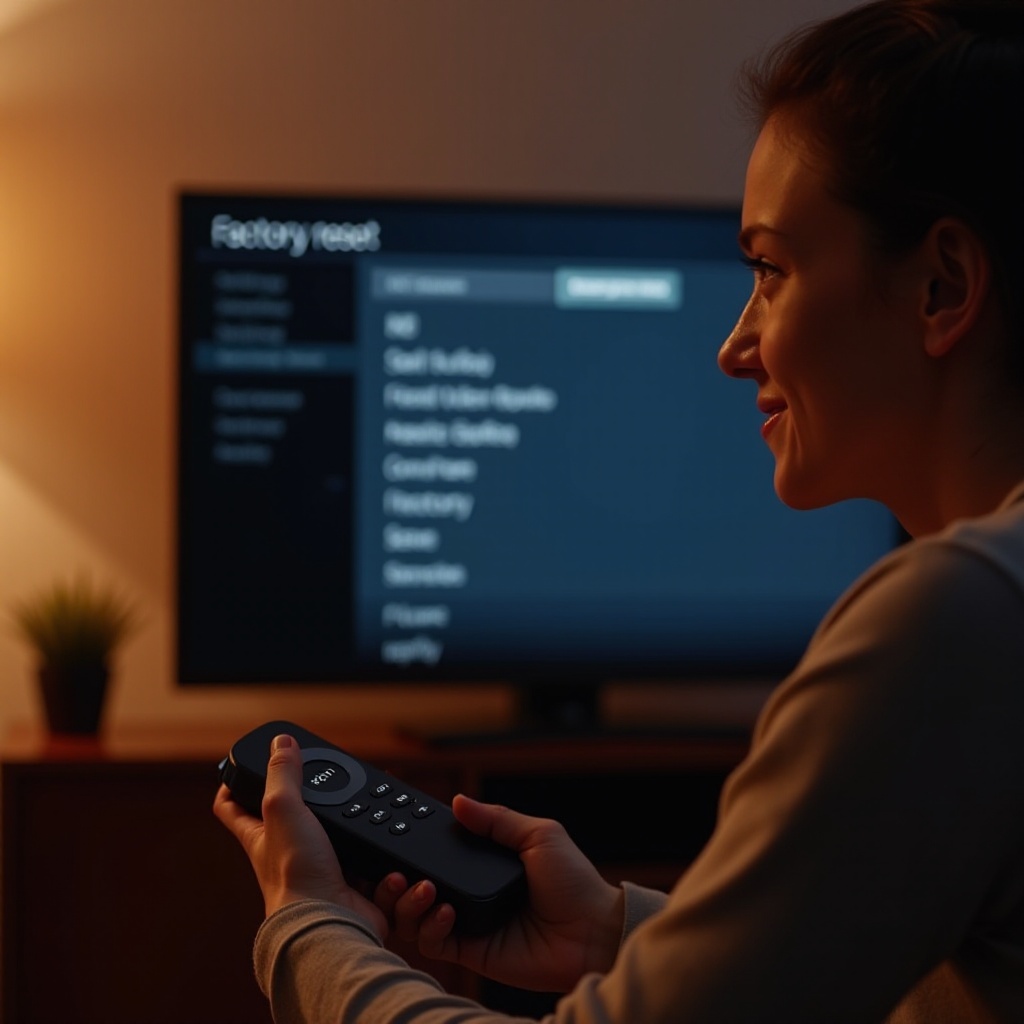
- Inside the ‘My Fire TV’ menu, select ‘Reset to Factory Defaults.
- Confirm the warning message by choosing ‘Reset.
- The Firestick will automatically restart and begin the reset, erasing all personal data in the process.
By completing these steps, your Firestick will reset to its original factory settings, providing a fresh start free from previous data.
Troubleshooting Common Reset Issues
Sometimes, issues may arise during the reset process. Here are some tips for overcoming common problems:
Dealing with Non-Responsive Devices
- If the device becomes unresponsive during the reset, disconnect the power supply for a minute, then reconnect. This action should prompt a fresh start.
Solving Network Connectivity Problems
- Following a reset, you might face challenges reconnecting to Wi-Fi. Ensure your network is functioning, and the Firestick is within signal range.
- Restart both your router and Firestick to address persistent connectivity issues.
Understanding these troubleshooting steps can help in completing a smooth reset.
Setting Up Your Firestick After a Reset
Once your Firestick is reset, it’s time to set it up for optimal performance.
Reconnecting to Wi-Fi and Accounts
- After restarting, follow the setup guide to reconnect your Firestick to Wi-Fi.
- Sign back into your Amazon account, followed by other essential streaming apps like Netflix or Hulu.
Customizing User Preferences
- Navigate through settings to choose your preferred language and other personalization options.
- Adjust display and audio settings to ensure an optimal entertainment experience.
Setting up your Firestick effectively after a reset helps restore access to your favored apps and services.
Tips for Maintaining Your Firestick’s Performance
Regular maintenance practices can help prolong the performance of your Firestick, avoiding frequent resets.
Regular Software Updates and Maintenance
- Regularly update software to benefit from new features and security enhancements.
- Clear cache and unnecessary data in apps to maintain system efficiency.
Efficient Streaming Practices
- Ensure you have a proper internet connection to avoid buffering issues.
- Close applications not in use to free resources and enhance performance.
By integrating these maintenance practices, you minimize the need for future resets, ensuring a more consistent and enjoyable streaming operation.

Conclusion
Factory resetting your Firestick can be essential for resolving persistent performance issues. The process restores your device, offering a new lease on dominance over technical disruptions. Ensuring data is backed up beforehand, and employing troubleshooting techniques sustains device function through complications. With regular upkeep and streamlining your Firestick usage, you can maintain a seamless TV experience, reducing the need for frequent resets and keeping your streaming sessions enjoyable and efficient.
Frequently Asked Questions
What happens if my Firestick freezes during the reset?
Simply unplug the device, wait a minute, then plug it back in. Restart the reset process once powered on.
Will a factory reset delete my Firestick apps?
Yes, all apps and data will be erased. Reinstall your favorite apps after the reset.
How often should I factory reset my Firestick?
Factory resets should be infrequent, only as a last measure for unresolved issues ensuring optimal device maintenance.