Introduction
Whether you’re an avid gamer or a casual player, knowing how to disconnect your PS5 controller from the console is vital for a seamless gaming experience. You may want to pair your controller with other devices, fix connectivity issues, or free up console resources. This comprehensive guide provides the necessary steps to disconnect your PS5 controller using different methods. Through each approach, you will find detailed instructions, ensuring you choose the method best suited to your needs while keeping your gaming device in top shape.
Understanding the PS5 Controller
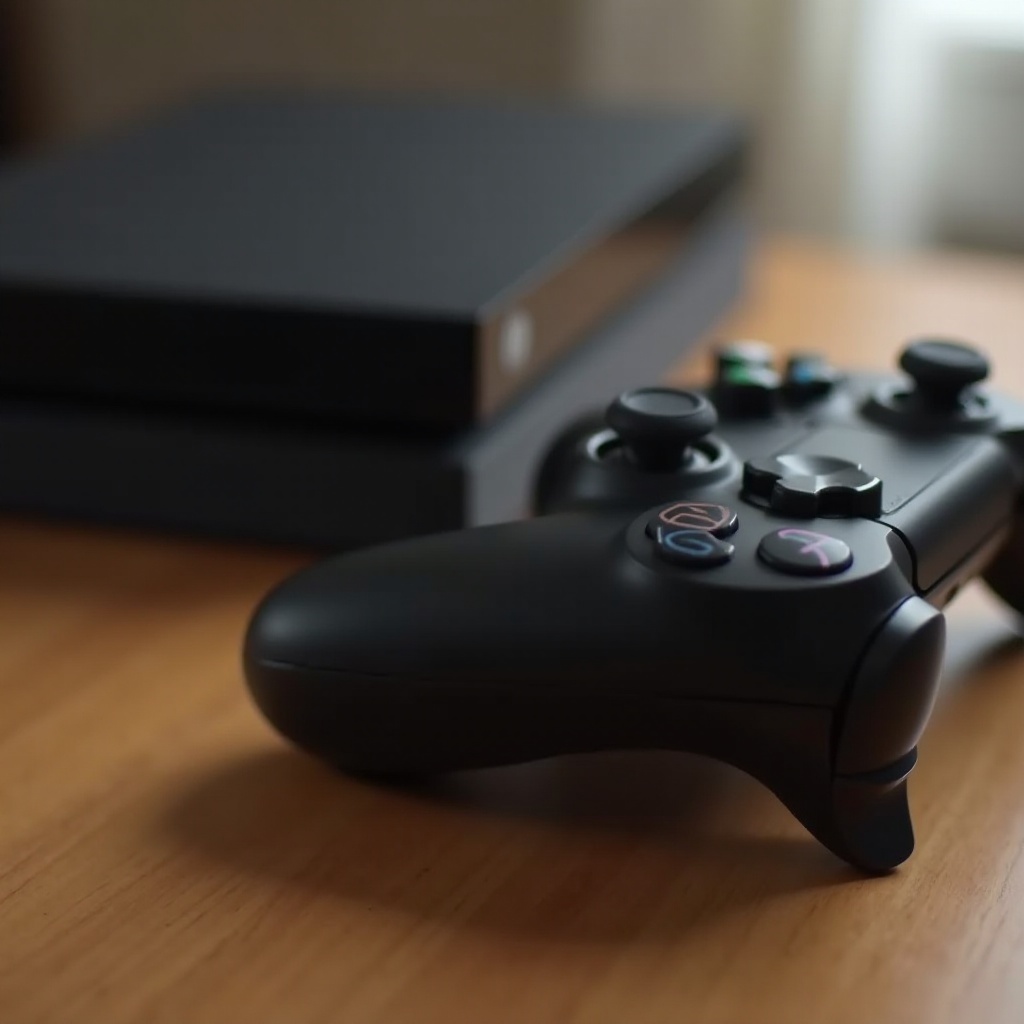
The PS5 DualSense controller revolutionizes the gaming landscape with its cutting-edge features like haptic feedback, adaptive triggers, and an integrated microphone. Your gaming sessions become more immersive with these technological advancements. The controller’s wireless Bluetooth connectivity introduces convenience by eliminating wires, yet it requires you to efficiently manage these connections for sustained performance.
Deciding to disconnect your controller can arise from various needs—solving connectivity hiccups, linking the controller to another gadget, or switching to wired gameplay to maximize battery life. Grasping your controller’s functions and limitations empowers you to execute successful disconnections and reconnections.
Preparation Before Disconnecting
Ensure your PS5 controller is powered off before disconnection to prevent damage or data loss. Charging the controller adequately enables a smooth reconnection, particularly if you’re planning to use it later or with a different device. Closing any open games or applications prevents data corruption or loss of game progress. Additionally, having the console’s settings menu easily accessible aids in expediting the disconnection procedure.
How to Disconnect PS5 Controller
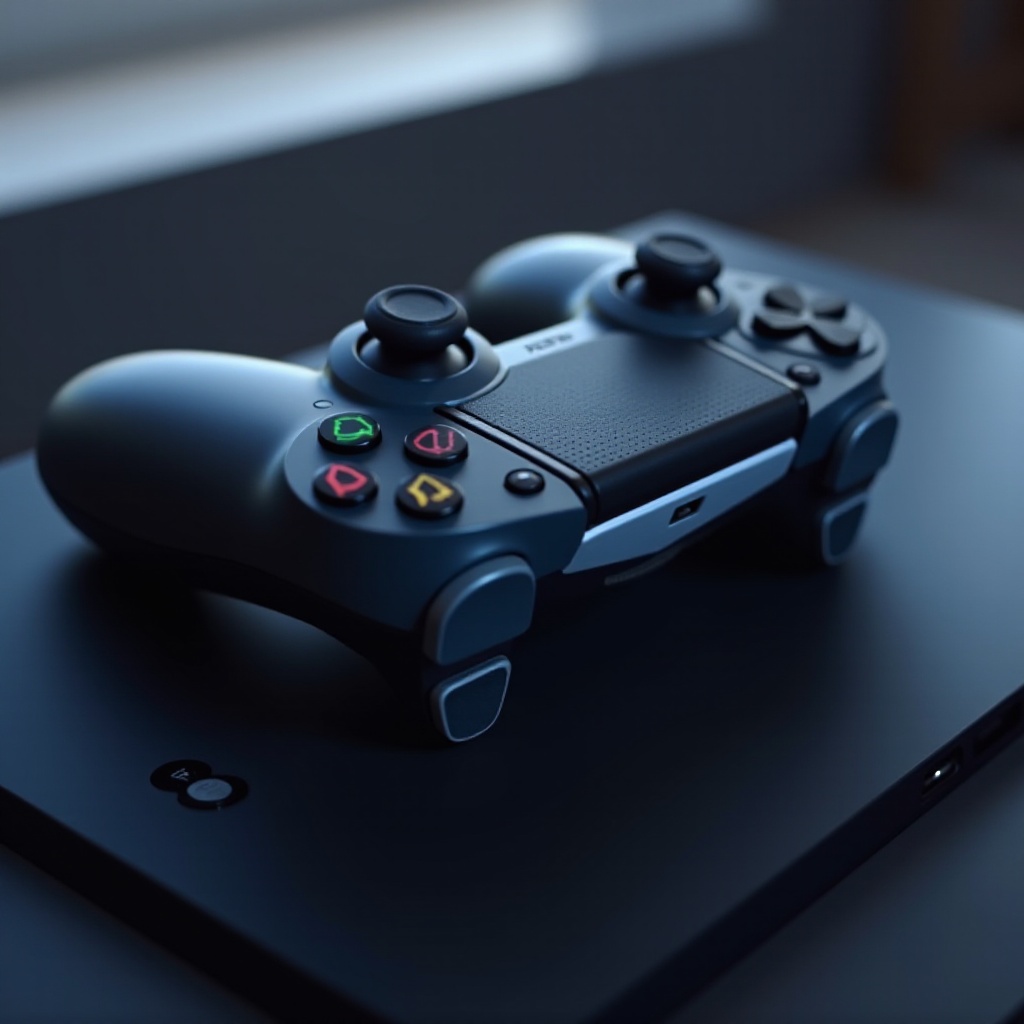
Disconnecting your controller can be achieved using multiple methods. Explore various approaches below, including console settings, hardware solutions, and the PlayStation App.
Using Console Settings
- Turn on your PS5 console.
- Navigate to ‘Settings’ from the home screen.
- Scroll and choose ‘Devices.
- Click on ‘Bluetooth Accessories.
- Locate your controller in the list of connected devices.
- Select your controller and choose ‘Disconnect.
Choosing this method is beneficial if your controller functions well and you prefer a simple path through the console’s UI.
Manual Disconnect Through Hardware
- Turn off the PS5 console.
- Unplug any connected USB cable from the controller.
- Find the small reset button on the backside of the controller.
- Employ a small object, like an unfolded paperclip, to press down on the reset button for about three seconds.
This manual approach is useful during performance issues, as resetting the hardware helps clear any connection faults.
Disconnect Via PlayStation App
- Launch the PlayStation App on your mobile device.
- Sign in using your PlayStation Network account.
- Go to ‘Connections’ within the app.
- Select your console and assess connected devices.
- Choose your controller and hit ‘Disconnect.
The PlayStation App is a practical solution for managing your console from afar and efficiently handling controller connections, especially if you’re not physically near your console.
Transitioning Between Connectivity Solutions
After disconnection, you may experience reconnection challenges. Common confrontations include the controller failing to pair or repeatedly disconnecting. To troubleshoot, confirm both the console and the controller’s Bluetooth are activated. Restart both devices to eliminate temporary glitches. If troubles continue, update your console’s firmware or reset the controller once more.
These troubleshooting tips can help you avoid prolonged inconvenience and guarantee a polished gaming setup.
Conclusion
Successfully disconnecting your PS5 controller from the console is hassle-free when following guided steps. Whether you decide on console settings, manual methods, or using the PlayStation App—pick what’s advantageous for your circumstances. With this guide, managing controller connections becomes an effortless task, securing an uninterrupted and enjoyable gaming experience.
Frequently Asked Questions
Can I reconnect the controller easily after disconnecting?
Yes, simply pair via Bluetooth settings or use a USB cable to reconnect it to the console.
Does disconnecting affect my saved data?
No, it won’t impact saved data. Ensure games are saved before disconnecting to avoid progress loss.
Can the controller be used with other devices once disconnected?
Yes, once disconnected, it can pair with Bluetooth-enabled devices like PCs and smartphones, offering broader usability beyond gaming.